20 Minute Preflight for Azure AD Chatbot Integration for Australian IT
Practical runbook for Azure AD chatbot integration: Azure Bot Service, Entra app registrations, Teams SSO, and managed identities. Includes a 20 minute...

The pattern that works in production is Azure Bot Service paired with Microsoft Entra app registrations, OAuth connections, and managed identities through DefaultAzureCredential for keyless authentication. Teams single sign-on and On-Behalf-Of token exchange slot into that same flow rather than sitting apart from it. Your first move: create the Entra app registration and the Azure Bot resource before touching any code.
TL;DR:
- Creating Entra app registrations and the Azure Bot resource before coding ensures smooth OAuth and token exchange setup and prevents common delays.
- Teams SSO is limited to one-to-one chats and requires pre-authorized client IDs and exact manifest configurations to work silently.
- DefaultAzureCredential enables keyless, environment-agnostic authentication for Azure resources, but role assignments may take minutes to propagate after setup.
- Troubleshooting common errors involves verifying role assignments, manifest settings, and ensuring the token audience matches the target resource.
- Using managed identities and scoped RBAC roles strengthens security and simplifies credential management in production deployments.
Table of Contents
- Preflight checklist before you start
- How the pieces fit together and where tokens move
- Step-by-step: from app registration to working code
- Teams SSO: what breaks it and how to keep it working
- Managed identity and RBAC: the keyless pattern that scales
- Troubleshooting: the errors you’ll actually hit
- Security guardrails for production
- Where an Australia-hosted platform fits this architecture
- What the conventional advice gets wrong here
- Thinking about a managed path instead of building this yourself
- FAQ
- Sources
Preflight checklist before you start
Before you open a single config file, confirm these are in place. Skipping this step is the single biggest cause of wasted afternoons on this integration.
- An Azure subscription with permission to register apps in Microsoft Entra ID and create Azure Bot Service resources.
- Your Tenant ID noted down, plus rights to assign RBAC roles once identities exist.
- Teams developer access or someone on hand who can edit the app manifest and upload a Teams package.
- Local tooling ready: Azure CLI, the relevant SDK (.NET, Node, or Python), and access to Application Insights for later diagnostics.
Twenty minutes spent confirming these saves hours of chasing permission errors mid-build.
How the pieces fit together and where tokens move
Picture the flow as four stops: the Teams client, the bot, Microsoft Entra ID, and whatever downstream API the bot ultimately needs to reach.
OAuth connections live on the Azure Bot resource itself, not in your code. The Entra app registration is what identifies your bot to the tenant and defines what it’s allowed to ask for. When a user signs in, the Bot Framework SDK handles the OAuth 2.0 exchange on your behalf, storing the resulting token in the Bot Framework token store rather than passing raw credentials through your bot logic.
From there, you’ve got three distinct patterns: a per-route handler that asks for a token only when a specific action needs it, global auto sign-in that authenticates the user as soon as the conversation starts, and On-Behalf-Of exchange, where the bot swaps its own token for one scoped to a downstream API like Microsoft Graph.
Managed identities and DefaultAzureCredential belong at the hosting layer, not in the Teams authentication chain. They replace stored secrets when your bot code needs to call Azure OpenAI, Key Vault, or other Azure resources.

Step-by-step: from app registration to working code
Follow this order. Jumping ahead (especially on the manifest) is where most integrations stall.
- Register your Entra app(s) and record the Tenant ID and client ID. If you’re enabling Teams SSO, you’ll also register a second app for the client side, with redirect URIs that point to
token.botframework.comwhere required. - Create the Azure Bot resource, set the messaging endpoint to your bot’s HTTPS endpoint, and enable the Microsoft Teams channel.
- Add an OAuth connection setting on the Azure Bot resource, using Azure AD v2 or federated credentials depending on your security posture.
- Configure OAuth scopes and the Token Exchange URL for Teams SSO, then map the connection to your agent’s handler. Each OAuth connection maps one-to-one to a handler, and setting
OBOConnectionNameandOBOScopesenables automatic On-Behalf-Of exchange. - Update the Teams app manifest: add
webApplicationInfowith your app ID, setmicrosoftEntraConfiguration, and includetoken.botframework.cominvalidDomains. - Write the SDK code that calls the token retrieval method for your language (
GetTurnTokenAsync,authorization.getToken, orauth.get_token), then perform the OBO exchange when the bot needs to call a downstream API on the user’s behalf. - Wire up
DefaultAzureCredentialin any code path that talks to Azure resources directly, settingAZURE_CLIENT_IDin your environment when you’re using a user-assigned identity.
Each step builds on the one before it, so test the OAuth connection in isolation (using the Bot Framework Emulator or Test in Web Chat) before you layer the Teams manifest changes on top.
Teams SSO: what breaks it and how to keep it working
Teams SSO for bots is more fragile than it looks on paper, mainly because the documentation doesn’t always flag the constraints upfront.
- SSO for bot apps works only in one-to-one personal chat; group chats and channels fall back to standard OAuth prompts.
- Messaging extensions have their own authentication rules, separate from the bot’s SSO configuration, so don’t assume one fix covers both.
- Pre-authorise the Teams client IDs in your Entra app registration so the token exchange can complete silently, without a consent prompt interrupting the flow.
- The manifest needs
webApplicationInfowith your app ID andsupportsSingleSignOnset to true. - Missing
token.botframework.comfromvalidDomainsis a classic silent failure: no error, just a token exchange that never resolves.
Test every SSO change in a real one-to-one chat, not just the emulator. Group chat behaviour will mislead you into thinking something’s broken when it’s working exactly as designed.
Managed identity and RBAC: the keyless pattern that scales
DefaultAzureCredential is what makes keyless authentication viable in practice rather than just in theory. It searches a chain of available credentials, using your local Azure CLI login during development and switching to the managed identity automatically once deployed to Azure. The code path doesn’t change between environments, which is exactly the point: fewer secrets to rotate, fewer credential mismatches between dev and production.
To make this work, assign the managed identity the Azure role it needs, such as Cognitive Services OpenAI User for Azure OpenAI access. Use a system-assigned identity when one resource needs access; switch to user-assigned when several hosts need to share the same identity, and set AZURE_CLIENT_ID so the credential chain knows which one to pick up.
Pro Tip: Role assignments can take a few minutes to propagate. If you’re getting 403 errors immediately after assigning a role, wait and retry before you start debugging code that isn’t actually broken.
Troubleshooting: the errors you’ll actually hit
Most failures trace back to one of five causes.
- 401 or 403 errors: check the role assignment on the identity and confirm the token audience matches the resource you’re calling; wait a few minutes after assigning a new role before retesting.
- SSO fails with no error message: confirm
validDomainsincludestoken.botframework.comand that the Teams client ID is pre-authorised in Entra. - Redirect or OAuth connection errors: verify your redirect URIs and the Token Exchange URL configured for Teams SSO match exactly.
DefaultAzureCredentialcan’t find a credential: runaz login --tenant <tenant-id>locally, or setAZURE_CLIENT_IDwhen a user-assigned identity is involved.
One pattern worth knowing: Microsoft’s own troubleshooting guidance notes that a 401 often points to a missing custom subdomain on the target resource rather than a credential problem at all, which is easy to misdiagnose as an auth bug. Check Entra sign-in logs, Bot Framework logs, and Application Insights together rather than guessing from one source alone.
Security guardrails for production
A handful of controls separate a secure deployment from one waiting to leak a token.
- Favour managed identities and federated credentials over client secrets wherever the hosting platform supports it.
- Scope tokens to least privilege and assign RBAC roles narrowly rather than reusing a broad role across services.
- Use Direct Line enhanced authentication for any web chat endpoint, and lock down reply URLs and
validDomainsto only what’s needed. - Log token exchange events and set an alert on unusual spikes in exchange failures. A sudden jump often means a tenant, consent, or certificate problem before it means an attack.
Where an Australia-hosted platform fits this architecture
When the compliance requirement is data residency rather than just authentication, the architecture above still applies, but the hosting layer matters. Our platform runs entirely within Australia, which means the CRM connectors and API hooks that consume OBO tokens or service tokens never need to send that data offshore to satisfy the integration. For teams in healthcare, finance, or other regulated sectors, that’s often the deciding factor once the token flow itself is working.
What the conventional advice gets wrong here
Most guides treat Teams SSO as a checkbox you tick once, when it’s genuinely one of the trickier parts of this entire integration. The one-to-one chat limitation catches experienced developers out because nothing in the manifest validation warns you about it: the bot simply falls back to a prompt in group chats, and Teams spend hours assuming they’ve misconfigured something.

The bigger blind spot is sequencing. Developers often wire up OAuth connections and the Teams manifest at the same time, which makes it nearly impossible to tell whether a failure is coming from the bot’s OAuth setup or the Teams-specific SSO layer. Test them separately. Get a plain OAuth connection working in Web Chat first, then layer Teams SSO on top once you know the underlying token exchange is sound.
If there’s one thing to prioritise above the rest, it’s moving to managed identities and DefaultAzureCredential early rather than retrofitting them later. Ripping out stored secrets after a bot is in production is far more disruptive than building on a keyless pattern from day one.
— Sowrabh
Thinking about a managed path instead of building this yourself
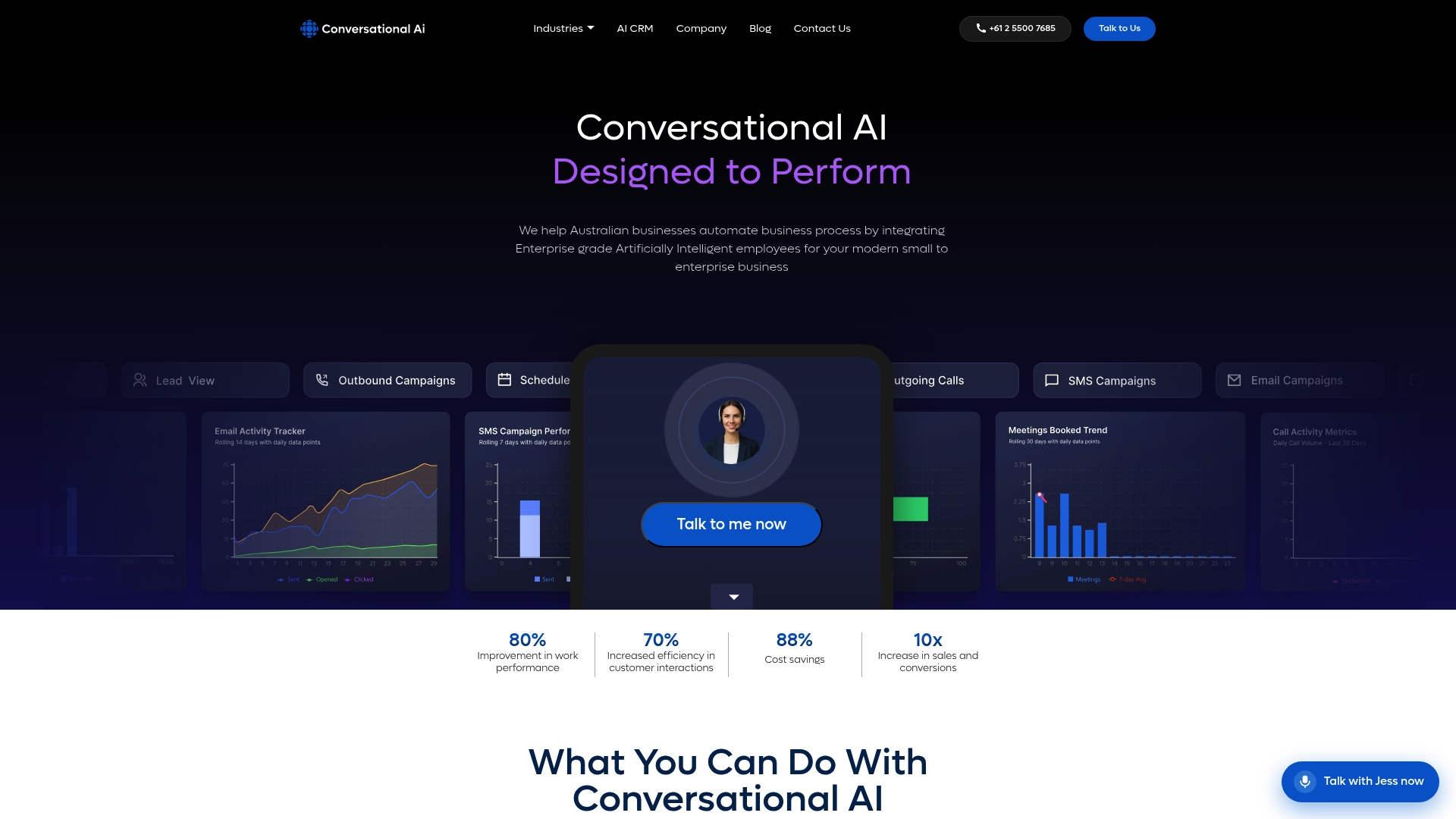
If your team would rather skip the token-exchange debugging and get straight to a working deployment, our Conversational AI CRM connects voice, chat, SMS, and email agents to your existing systems without you managing OAuth connections or manifest settings by hand.
Compliance-heavy teams tend to ask about data residency before anything else, which is where our healthcare and banking and finance industry pages go into the specifics, and our on-premises deployment option covers organisations that need the infrastructure kept entirely in-house. Consider contacting providers for demos if you’d rather see the integration working than build it from scratch.
FAQ
What is the recommended architecture for Azure AD chatbot integration?
The standard pattern combines Azure Bot Service, a Microsoft Entra app registration, an OAuth connection on the bot resource, and managed identities through DefaultAzureCredential for any calls to other Azure services. Teams SSO and On-Behalf-Of token exchange are configured within that same setup rather than as separate systems.
Does Teams SSO work in group chats as well as one-to-one chats?
No. Teams SSO for bot apps is supported only in one-to-one personal chat; group chats and channels fall back to a standard OAuth sign-in prompt. Messaging extensions follow their own separate authentication rules.
Why does Azure AD chatbot SSO fail without an error message?
Silent SSO failures are almost always caused by a missing token.botframework.com entry in the manifest’s validDomains, or a Teams client ID that hasn’t been pre-authorised in Entra. Checking both settings before touching code resolves most of these cases.
How does DefaultAzureCredential remove the need for stored secrets?
DefaultAzureCredential searches a chain of available credentials, using your local sign-in during development and the managed identity automatically once your code runs in Azure. The same code path works in both environments, which removes the need to manage or rotate client secrets.
What should I check first when I get a 401 or 403 error?
Start with the role assignment on the managed identity and confirm the token audience matches the resource being called, since role changes can take a few minutes to take effect. A 401 can also point to a missing custom subdomain on the target resource rather than a genuine authentication fault.